
There are several platforms that let photographers create a link to share photos.
Here are the main options:
| Type of platform | Best for | Examples |
|---|---|---|
| Cloud storage | Simple photo or album sharing | Google Photos, Dropbox, iCloud |
| File transfer tools | One-off file delivery | WeTransfer |
| Gallery platforms | Professional photo presentation and delivery | Honcho, Pixieset, Pic-Time |
For photographers delivering a full gallery to clients, a gallery platform is usually the better option. It gives you more control over how your photos are presented, who can access them, and how clients browse and download them. Cloud storage and file transfer tools can still work well when you just need a simple way to send files.
Let’s walk through each platform.
Cloud Storage
Google Photos
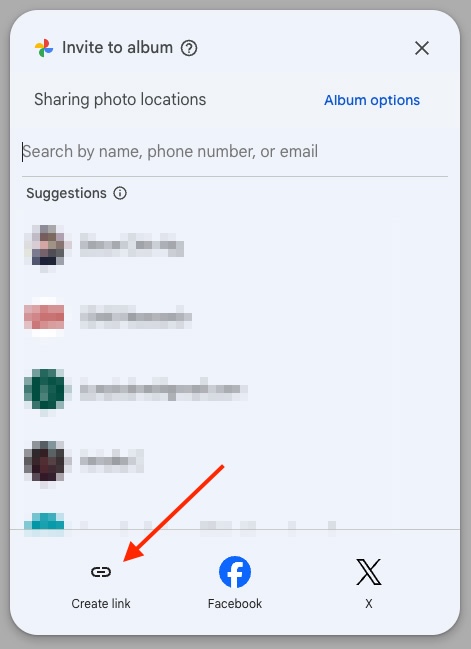
- Select a single photo, multiple photos, or create an album and add the photos you want to share.
- Click Share, choose Create link, then copy the link.
What to know about Google Photos
- If you share an album using a link, anyone who gets the link can view it, and the link can be forwarded to other people. If the photos are private, you can instead share the album directly with specific Google Accounts.
- Anyone with access to a shared album can add other people. If Collaborate is enabled, they can also add photos, so turn it off if you only want recipients to view the album.
- Removing someone from an album does not block them if Link sharing is still turned on and they still have the original link. To fully revoke access through that link, turn off Link sharing.
Dropbox
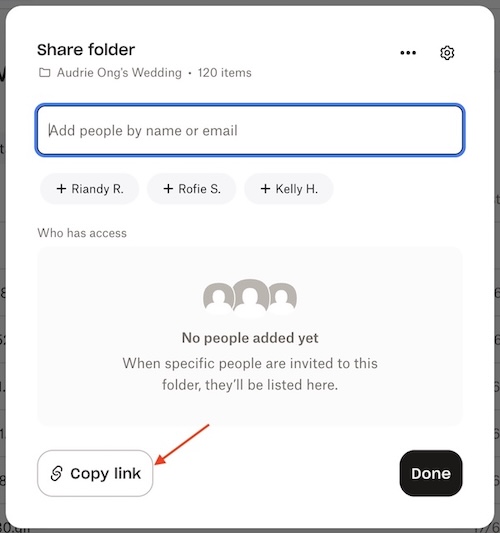
- Create a folder in Dropbox and upload the photos you want to share.
- Open the folder, click Share, and create a shareable link. If recipients only need to view or download the files, use a view-only link rather than inviting them to edit the folder.
What to know about Dropbox
- Shared links can be set to Anyone with the link or restricted more tightly, depending on your plan and account settings.
- Extra controls such as password protection, link expiration, and disabling downloads are limited to certain paid Dropbox plans.
iCloud
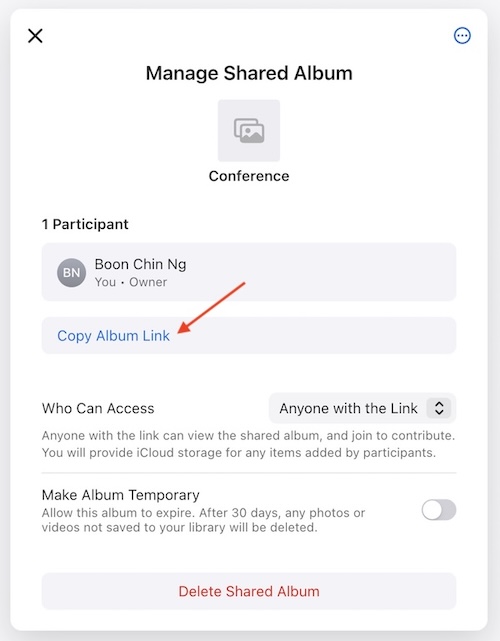
- Create a shared album in Photos and add the photos you want to share.
- Open Sharing Options and choose Anyone with the Link so people can open the album from the link. On older Apple software, turn on Public Website instead.
- Copy the album link.
What to know about iCloud
- If you choose Anyone with the Link, anyone who gets the link can access the album. For private client photos, People You Choose gives you tighter control.
- Temporary Shared Albums expire after 30 days, so they are not suitable if clients need long-term access. Regular Shared Albums do not have the same automatic expiry.
- On iOS, iPadOS, and macOS 26 or earlier, photos in Shared Albums are reduced to 2048 pixels on the long edge. Version 27 and later support sharing photos at their original resolution, so photographers using older software should not rely on Shared Albums for full-resolution delivery.
File Transfer Tools
WeTransfer
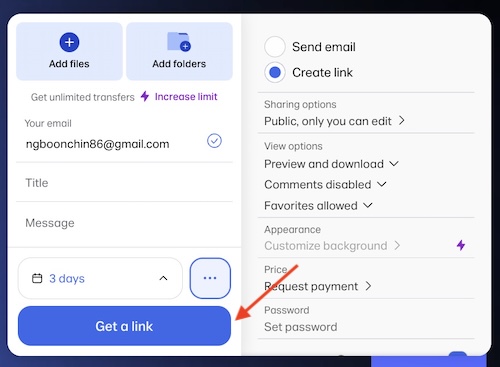
- Add the photos or folder you want to send.
- Click the … button and choose Create link.
- Optionally customize the transfer, such as its expiration date, password protection, or appearance.
- Click Get a link. Once the upload finishes, copy the generated link.
What to know about WeTransfer
- Recipients can download individual files or download the entire transfer at once.
- Transfer links expire. Free and Starter transfers can stay available for up to 3 days, while Ultimate supports custom expiration dates, including keeping a transfer active indefinitely.
- From the Transfers panel, you can change a transfer’s expiration date within your plan limits, add or change a password, and see how many times it has been downloaded.
Gallery Platforms
Honcho
- Create an album in Honcho and upload your photos.
- Configure the album’s access and download settings.
- Click the Share icon and copy the link.
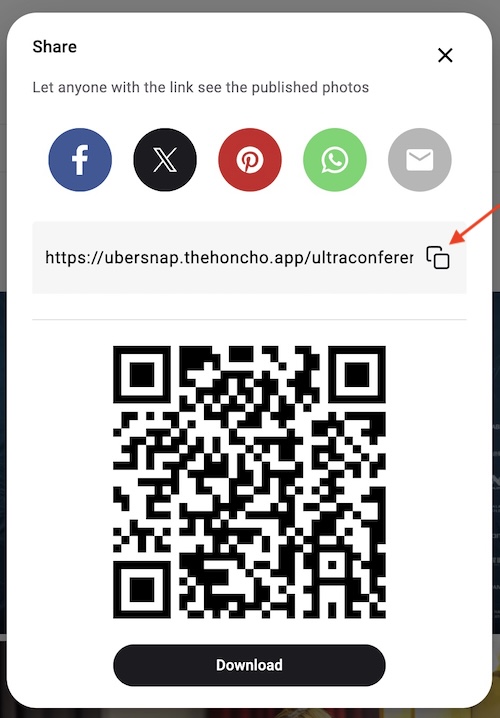
What to know about Honcho
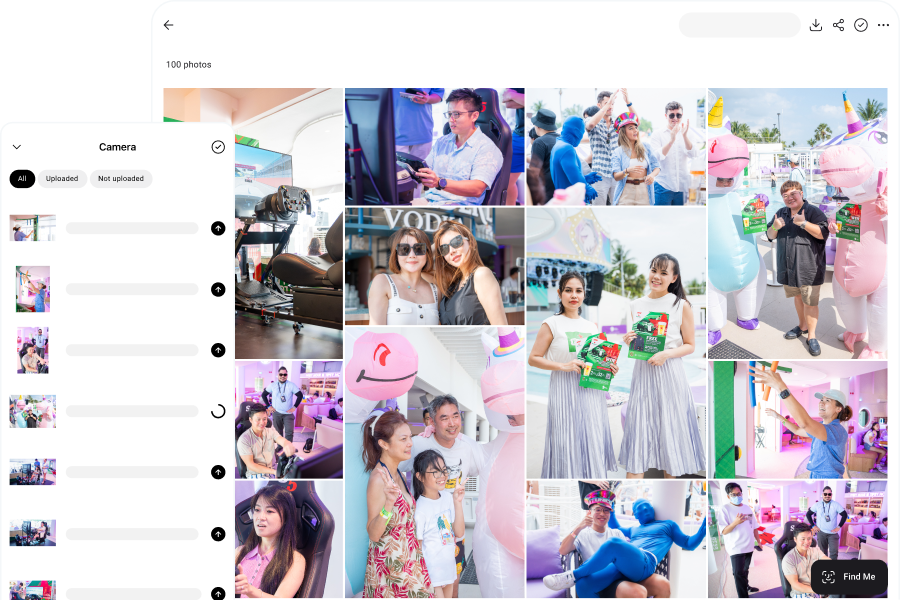
- Guests can find photos in several ways: upload a selfie to find the photos they appear in, browse faces to find photos of a specific person, or describe what they’re looking for, such as “flowers” or “people smiling at the camera.”
- Photos can be blurred so visitors only see their own photos found through face recognition, and no one else’s. This is useful for public events such as races, school events, and conferences.
- Honcho can be used as a normal post-event gallery, or you can upload photos from your camera while shooting for instant sharing.
Pixieset
- Create a collection in Pixieset and upload your photos.
- Configure the collection settings, including privacy and download options.
- When the gallery is ready, click Share, choose Get Direct Link, and copy the link.
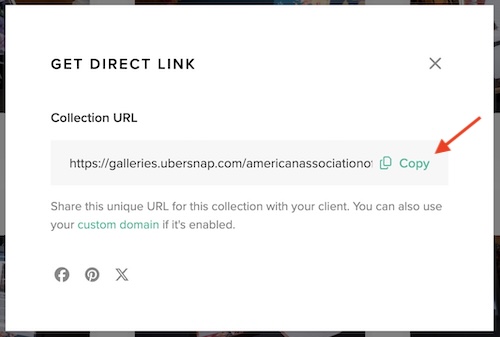
What to know about Pixieset
- Pixieset is built specifically for client photo delivery, so galleries can be customized with your branding and organized into collections and sets.
- You can control who can access a gallery, whether clients can download photos, and which files or sizes are available for download.
- Clients can also favorite photos, leave notes, and make selections inside the gallery, which can be useful if you use Pixieset for proofing as well as final delivery.
Pic-Time
- Create a gallery in Pic-Time and upload your photos.
- Organize the gallery and configure the relevant access and download settings.
- Open the Share tab and create a link. You can create different links with different access permissions.
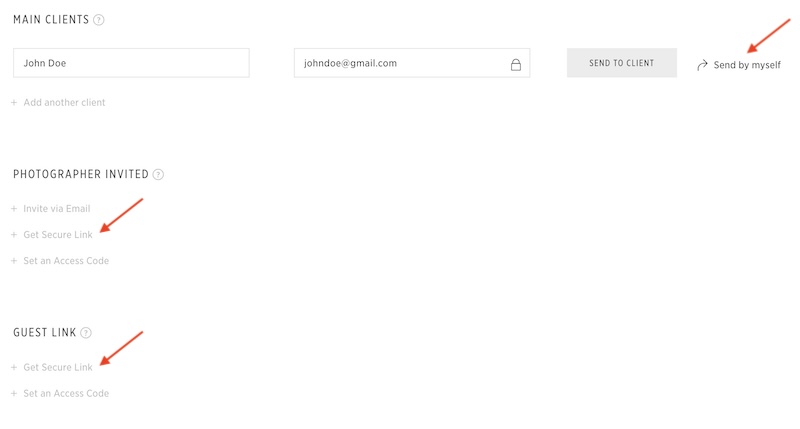
What to know about Pic-Time
- Galleries can be Public or Private. Private galleries restrict access to invited users or people with an access code, while public galleries can be opened by anyone with the gallery link.
- Main clients can hide individual photos from other visitors before sharing the gallery, which is useful when they want to keep certain images private.