
Part of our Workflow guides
Explore more articles on working faster, managing volume, and delivering efficiently in our Workflows section.
Photo backup is one of those topics most photographers don’t think about seriously until something goes wrong.
I learned early on that this isn’t a safe mindset. I’m a wedding, event, and commercial photographer. If I lose photos, I don’t get a reshoot.
Over the last eight years, I’ve had one laptop fail and two hard drives die. Each time, I didn’t lose a single photo, not because I was lucky, but because I had a backup system in place that assumed failure was inevitable.
That experience shapes how I think about photo backup. I aim to design a system that survives real-world conditions, including hardware breaking, human error, time pressure, and the reality that most photographers don’t have the mental bandwidth to constantly babysit their files.
The purpose of this article is to help you design your own backup system, one that fits your workflow, your risk tolerance, and the kind of photography you do.
Instead of asking “What’s the best backup?”, we’ll focus on better questions:
- What kind of loss are you actually protecting against?
- Where do backup setups fail?
- What trade-offs are you making between convenience, cost, and certainty?
- When does a simple setup stop being enough?
By the end, you should be able to evaluate your own workflow clearly and build a backup strategy you actually trust when it matters.
What Are You Protecting Against?
Before you can design a backup system, you need to be clear about what you’re protecting against. Backup choices only make sense when you understand how things actually fail. Some problems happen often but affect only part of your work. Others are rare but can wipe everything out at once.
Hardware Failure
Drives and computers fail in ways that are both common and unpredictable. A disk can work fine for years and then fail during a large transfer, an import, or a system update, often when you’re under time pressure.
This isn’t unusual. Backblaze, which tracks hundreds of thousands of hard drives in real-world use, reports annual hard drive failure rates of around 1–2% per year. Over time, failure isn’t a question of if, but when.
Hardware failure usually affects one device at a time. When it happens, it’s often total for that device, but it doesn’t spread on its own.
Backup systems fail here when they rely on a single working drive or one computer as the main source of truth.
Protecting against hardware failure is mostly about redundancy across devices. Multiple independent copies make sure one failed drive doesn’t turn into lost photos.
Physical loss
Physical loss happens at the location level, not the device level. Theft, fire, flood, or accidental damage can wipe out multiple devices at once if they live in the same place.
This is a rarer failure mode than hardware failure, but when it occurs, the impact is usually total. Two drives sitting next to each other do not reduce this risk, even if both are healthy and redundant.
Backup systems fail here when all copies are stored in the same room or building.
Protecting against physical loss requires distance. At least one copy has to live somewhere else, separate from your main workspace and equipment.
The 3-2-1 Rule: What It’s Actually For
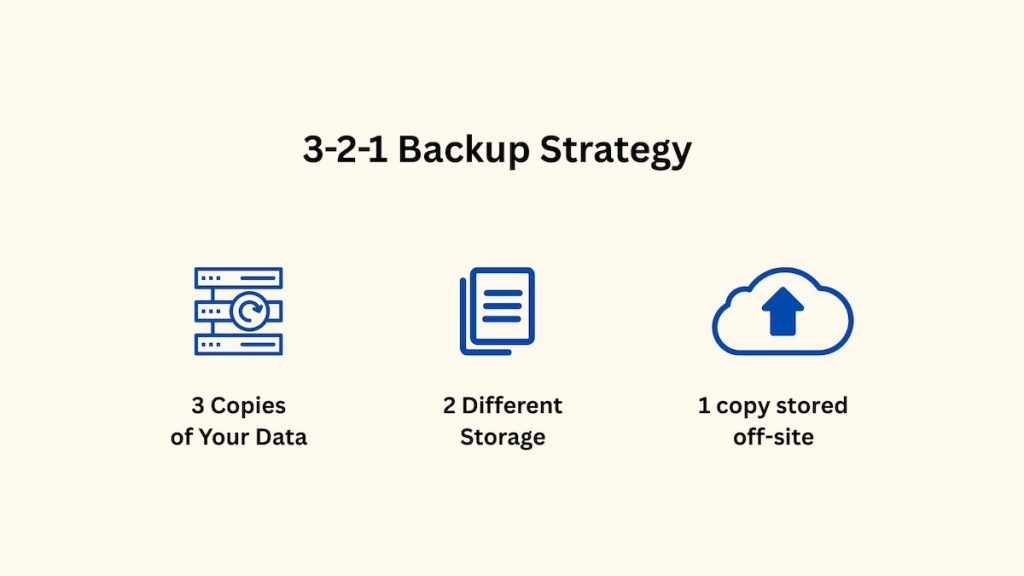
The 3-2-1 rule is popular because it reduces risk in a very practical way.
Instead of trying to prevent failures, it assumes they will happen and limits the damage by making sure one problem doesn’t wipe out everything at once.
The rule itself is simple:
- 3 copies of your data
- 2 different types of storage media
- 1 copy stored off-site
What It Protects Against
3 copies
This protects against single-device failure. One drive dying, one laptop failing, or one card corrupting doesn’t wipe everything out. The moment you only have one copy, you’re exposed.
2 types of storage media
This reduces the chance that all copies fail in the same way. Identical drives bought at the same time tend to fail in similar patterns. Using different devices or storage types lowers that risk.
1 off-site copy
This protects against location-level loss. Theft, fire, or water damage don’t care how many drives you own if they’re all in the same place. One copy needs to live somewhere else.
Seen this way, the 3-2-1 rule is a way to spread risk.
Variations like 3-2-1-1 and 3-2-1-0
Some photographers add extra layers to the basic 3-2-1 setup, to address specific failure modes.
These variations add protection, but they also add complexity. For most photographers, the standard 3-2-1 approach is enough.
3-2-1-1: Adding an immutable copy
The extra “1” in 3-2-1-1 means keeping one copy that can’t be changed or deleted for a set period of time. Once files are written, they’re locked. Even if you accidentally delete a folder, overwrite files, or a sync tool mirrors a mistake, that copy stays untouched until the lock expires.
This usually means using a backup service with write-once or object-lock settings, where files are frozen for 30, 60, or 90 days. This layer is mainly there to protect against ransomware, large accidental deletions, or sync errors that affect both your local and cloud copies.
The trade-off is flexibility and cost. Immutable backups are harder to manage and slower to change, but they act as a last line of defense when everything else fails. For most photographers, this only makes sense when the impact of data loss is extremely high.
3-2-1-0: Focusing on verification
The “0” in 3-2-1-0 stands for zero backup errors. It shifts the focus from storing files to making sure backups actually work. A backup you’ve never tested is not assumed to be usable.
This means checking backup logs and occasionally restoring files to confirm they open correctly. For photographers, this can be as simple as restoring a few random RAW files from an external drive or downloading a folder from your cloud backup every few months.
This approach adds confidence. The trade-off is time and discipline, but it greatly reduces the risk of discovering a broken backup only when you urgently need it.
Two Backup Setups I’ve Used
The 3-2-1 rule is a framework for thinking about backups. In the real world, backup systems reflect trade-offs between simplicity, cost, and recovery. Here are two backup setups I’ve used myself, and why I eventually moved from one to the other.
A Simpler Setup
For a long time, I ran a very lightweight system. My working files, meaning photos I was still editing, lived on my laptop. Once a job was fully delivered, I offloaded those files to an external hard drive to free up space on the laptop. Both the laptop and the external drive were backed up to the cloud using Backblaze.
The benefit of this setup was simplicity. There was very little to manage, and the cloud backup ran automatically in the background. I didn’t need to think about manual copies or schedules, which matters when you’re busy and tired after shoots.
The trade-off is that this isn’t a true 3-2-1 system. At any point, there were only two copies of each file: one local and one in the cloud. That means you’re placing a lot of trust in the cloud backup provider. Restores are also slow. If you lose local data, recovery depends entirely on downloading from the cloud. Once your archive reaches terabytes, restoring everything can take days or even weeks, depending on your internet speed.
This setup works if you value simplicity and are willing to accept slower recovery times and higher dependence on a single off-site provider.
A Robust Setup
As my archive grew and the cost of downtime increased, I moved to a more robust system. I use a Network Attached Storage (NAS) with multiple hard drives configured in redundancy mode, so there are already two copies of each file inside the NAS itself. My laptop is backed up to the NAS weekly using Time Machine. On top of that, both the laptop and the NAS are backed up to the cloud.
This gives me two local copies and one off-site copy. If a drive fails, I don’t lose data. If my laptop dies, I can restore quickly from the NAS. As long as I still have my local copies, restores are fast and don’t depend on internet speed. The cloud backup is there mainly to protect against physical loss, like theft or a disaster that wipes out everything on-site.
The trade-off is cost and effort. A NAS isn’t cheap, and it takes time to set up and maintain. But the payoff is speed. I’m no longer relying on the cloud as my primary recovery path. It’s my last line of defense, not my first.
Applying the 3-2-1 Rule in a Real Photography Workflow

I don’t think of backup as a single step. It runs through my entire photography workflow, from the moment I start shooting to long after a job is delivered. Where and when you create copies matters just as much as how many you have.
I find it easiest to think about backup in stages.
During the Shoot: Don’t Leave With One Copy
The first risk point is on location. If something goes wrong here, there’s no way to recover it later.
I shoot with dual card slots so the camera writes to two cards at the same time. It’s to avoid leaving the shoot with only one copy of important work.
In the studio, I often shoot while tethered. As I shoot, the photos are transferred directly to my laptop in real time. This lets me jump into editing immediately, review images with clients on the spot, and it also creates an extra copy during the shoot itself. I’ve written more about how this works in my guide to tethered shooting.
Sometimes, I extend this further by using a camera-to-cloud workflow, where images upload during capture instead of after the shoot.
This doesn’t replace a full backup system, but it reduces risk early. By the time the shoot ends, the files already exist in more than one place, which makes the rest of the workflow much safer.
Ingestion and Working Files: Protect What You’re Editing
Ingestion is where I see most mistakes happen. Files are moving and it’s easy to assume everything copied correctly when it didn’t.
Once I’m back at my workstation, I import files to my laptop and immediately create a second local copy, either on an external drive or a NAS. This protects me against a drive failure while I’m still editing and before anything is archived.
After Delivery: Long-Term, Off-Site Protection
At this point, the job is done, but the responsibility to protect the files doesn’t disappear.
This is where off-site backup becomes important. Its role is protection against worst-case scenarios like theft, fire, or anything that wipes out everything I have locally. For me, this means cloud backup.
If you’re deciding which option makes sense for long-term protection, I go into more detail in my guide to cloud storage for photographers.
I don’t expect to restore from the cloud often, or quickly. I treat it as a last line of defense. If I ever need it, something serious has already gone wrong. As long as a copy exists somewhere outside my physical workspace, I know a total loss is unlikely, even long after the project is finished.
Backup Habits and Common Failure Points
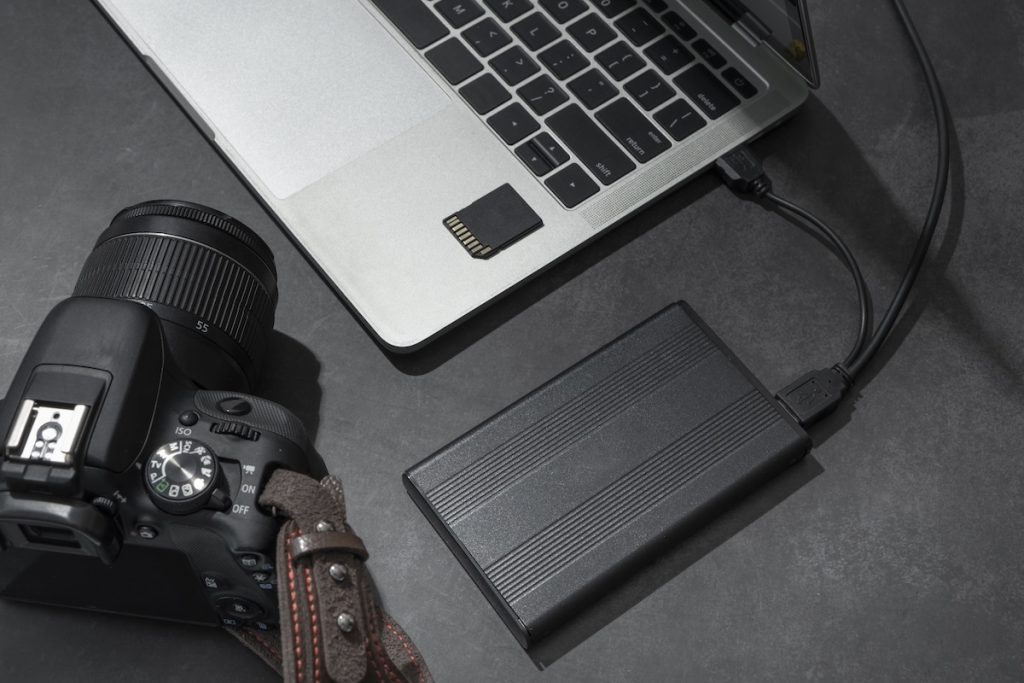
A backup system is shaped by habits and assumptions. Some reduce risk over time, while others create a false sense of safety.
Good Habits That Reduce Risk
These are the habits I rely on to keep my backup system reliable. None of them are complicated, but each one closes a common failure gap.
- Delay formatting memory cards
I don’t format cards until the files exist in more than one location. Cards are fragile and easy to wipe by mistake, so they’re treated as temporary storage, not backups. - Use versioned backups
Versioning protects me from accidental deletes and overwrites. If something goes wrong, I can roll back to an earlier version instead of losing everything. - Automate backups
Backups that rely on memory eventually get skipped. Automation removes that risk and keeps copies consistent. - Verify occasionally
Every so often, I restore real files to make sure backups actually work. Logs and green checkmarks aren’t enough.
Common Failure Points
These are some of the most common backup approaches I see. They often feel reassuring at first, but they leave gaps that only show up when something actually goes wrong.
- A single external drive
An external drive feels like a backup because it’s separate from your laptop, but it’s still a single point of failure. Drives can fail, get dropped, or become unreadable. If that drive is lost or damaged, everything on it is gone at once. - Cloud-only setups
Cloud storage is convenient, but restores can take days or weeks with large photo libraries. Sync-based services can also mirror deletions or mistakes unless versioning is set up. Cloud works best as a last line of defense, not the only one. - NAS-only setups
A NAS with RAID protects against a hard drive failing, but it doesn’t protect against everything else. File corruption, ransomware, or physical disasters like fire or flooding can still wipe out all data on the NAS. Without off-site or versioned backups, a NAS is incomplete. - Memory cards as “backups”
Memory cards are capture media, not long-term storage. They’re easy to lose, easy to format by accident, and not designed for long-term use. Keeping files on cards “just in case” creates false confidence, not real redundancy.
Conclusion
There’s no single “best” backup setup for photographers. What works depends on the kind of work you do, how much you shoot, how quickly you need to recover, and what kind of loss you can’t tolerate.
Once you assume that drives will fail and unexpected events will happen, you can design a backup system around real points of failure. The 3-2-1 rule is useful because it spreads risk, but it only works when you adapt it honestly to your workflow and constraints.
My own system has changed over time because my work changed. As volume grew and downtime became more costly, I traded simplicity for faster recovery and more redundancy. That doesn’t mean everyone needs the same setup. It means your backup strategy should evolve as your risks do.
Aim for a system you understand, maintain, and trust. A backup you actually follow is far more valuable than a theoretically perfect setup you don’t.
Frequently Asked Questions
For most photographers, no. Cloud storage is useful, but cloud-only setups rely entirely on account access, internet speed, and restore time. Sync services can also mirror deletions or mistakes unless versioning is enabled. Cloud works best as a last line of defense, not the only copy.
No. RAID protects against a single drive failing, not against accidental deletion, file corruption, ransomware, or physical disasters. A RAID system still needs versioned and off-site backups.
You need enough copies so one failure doesn’t wipe everything out. For most photographers, that means a working copy, at least one additional local copy, and one off-site copy. This is the logic behind the 3-2-1 rule, where covering different types of failure matters more than the exact tools you use.
Not always. Immutable backups (3-2-1-1) make sense when the cost of data loss is extremely high or when automated systems increase the risk of silent errors. Verification-focused setups (3-2-1-0) become important as your archive grows and failures are harder to notice. Most photographers can start with standard 3-2-1 and add layers only when they solve a real problem.
As often as your tolerance for loss allows. For irreplaceable work like weddings or events, backups should happen as soon as possible, ideally the same day. For long-term archives, regular automated backups are usually sufficient, as long as they’re consistent and monitored.
Only after your files exist in more than one location. Memory cards are temporary capture media, and formatting them too early is one of the most common causes of avoidable data loss.
That depends on your business, client expectations, and storage costs. Many photographers keep delivered work for months or years, but the key is to treat archived projects differently from active ones and ensure at least one copy remains off-site.
The only reliable way is to restore files. Logs and status indicators help, but occasionally downloading files from the cloud or restoring from a drive confirms that your backups are complete and usable.