
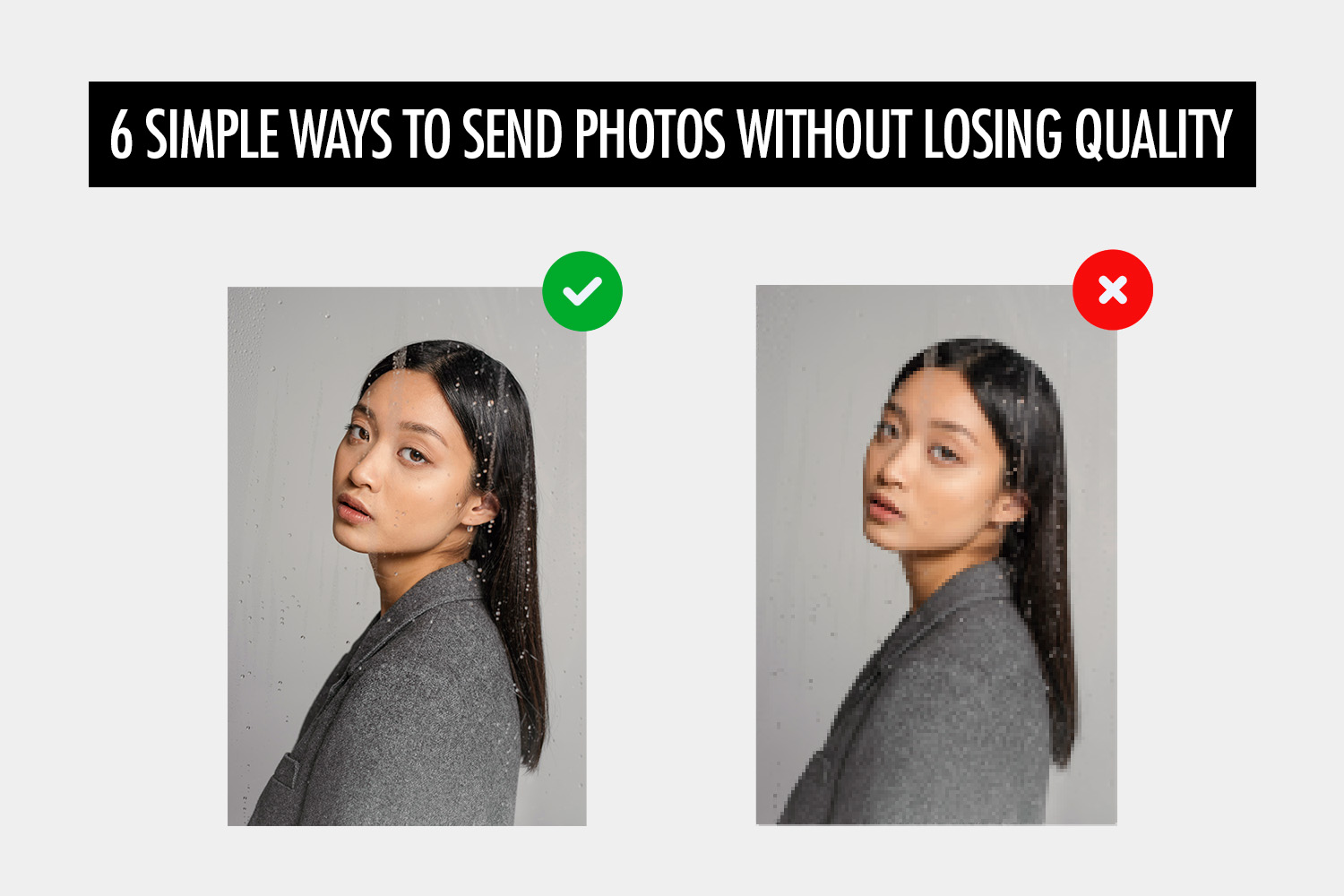
As photographers, we need to send photos to our clients without losing quality. But many common sharing methods can compress photos if we’re not careful.
For example, uploading photos to Instagram can reduce image quality. Social media platforms are built for sharing photos, not for delivering original files.
If you want to preserve the original quality, use a method that delivers the original file instead of a compressed copy.
| Method | Best for |
|---|---|
| Online gallery | Professional client delivery |
| File sharing | Cross-device sharing |
| AirDrop | Nearby Apple devices |
| Quick Share | Nearby Android and Apple devices |
| A few smaller files | |
| Physical storage | Very large transfers or offline delivery |
Online gallery
Online galleries are built for delivering photos to clients while preserving image quality. They can automatically generate different download sizes, so clients can choose full-resolution files or smaller versions for social media.
They can also include features such as password protection, branding, and proofing.
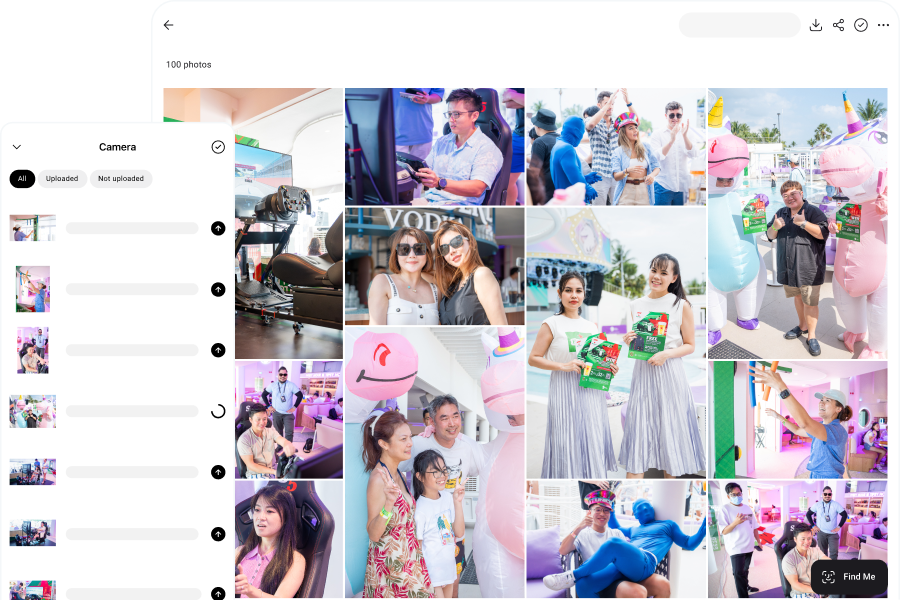
Honcho adds face recognition and keyword search for larger galleries, so clients and guests can find the photos they care about instead of scrolling through thousands of images.
File sharing
File-sharing services let you send original photos through a download link while preserving their quality. They are useful for sending large batches or high-resolution files that are too big for email.
Services such as Google Drive, Dropbox, and WeTransfer can also offer access controls or link expiry.
AirDrop
AirDrop lets you send full-quality photos directly between nearby Apple devices. It works well when you need to transfer a small number of photos quickly without uploading them first.
To send photos with AirDrop:
- Open the Photos app and select the photos you want to send.
- Tap Share, then AirDrop.
- Select the recipient’s device.
- The recipient accepts the transfer.
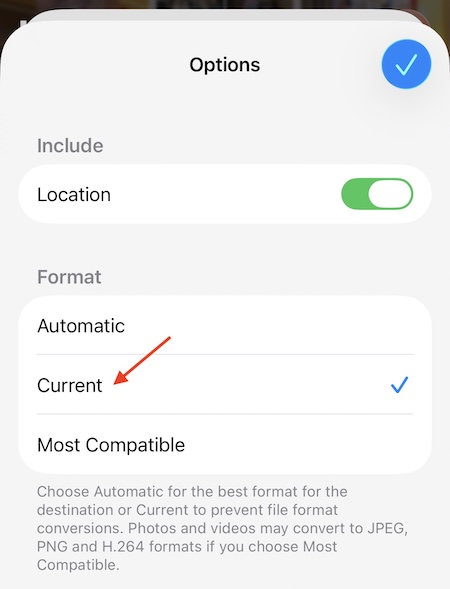
If you want to keep the photo in its original file format, tap Options before sharing and choose Current. This avoids any format conversion that could affect image quality.
Quick Share
Quick Share lets you send full-quality photos between nearby Android devices.
To send photos with Quick Share:
- Select the photos you want to send.
- Tap Share, then Quick Share.
- Select the receiving device.
- The recipient accepts the transfer.
Quick Share can also send files to Apple devices.
On supported Android devices, Quick Share works directly with AirDrop. The Apple user sets AirDrop to Everyone for 10 Minutes, and the Android user selects the Apple device in Quick Share.
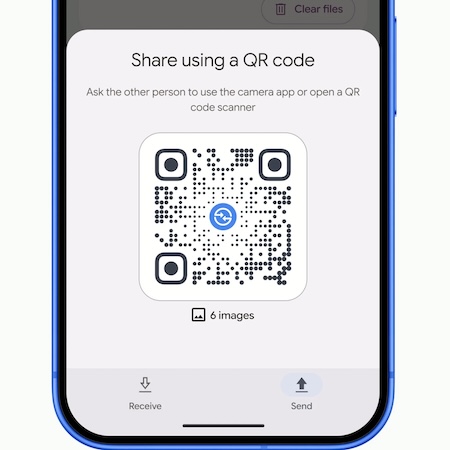
On Android devices that don’t support direct AirDrop transfers, Quick Share can generate a QR code instead. The Apple user scans it and downloads the files through a secure web link. This method requires internet access.
Email works well for sending a small number of full-quality photos.
The main limitation is the email size limit. For most email providers, the maximum is typically around 10 to 25 MB. If you exceed that limit, the email may fail to send or bounce back. That usually leaves room for only a few full-quality photos.
You can reduce the file size by compressing the photos into a ZIP file, although the savings may be small with JPEGs. ZIP uses lossless compression, so it won’t reduce image quality.
Physical storage
Physical storage may seem old-fashioned, but it’s a reliable way to deliver photos without losing quality. You can copy the files to a USB flash drive and hand it to your client.
You can also make the delivery feel more premium with personalized packaging, such as a custom wooden box.
The main downside is speed. Unless you can hand over the drive after the shoot, you’ll need to mail it to the client, which can take several days.