
Part of our Workflow guides
Explore more articles on working faster, managing volume, and delivering efficiently in our Workflows section.
There are four common ways to transfer photos from a camera to your phone.
| Method | Best for | How it works |
|---|---|---|
| Wi-Fi | Convenient wireless transfer | Connect through the camera’s mobile app, then import the files |
| Memory card reader | Fast transfer of larger batches or original files | Connect the memory card to your phone with a reader, then import the files |
| Direct USB | Fast transfer of larger batches or original files | Connect the camera directly to your phone, then import the files |
| Tethering | Transferring new photos automatically while you shoot | Keep the camera connected so new photos transfer to the phone as they’re captured |
How do you transfer photos over Wi-Fi?
Many cameras let you transfer photos wirelessly through the manufacturer’s mobile app. For example, Canon offers Camera Connect, Sony offers Creators’ App, and Nikon offers SnapBridge.
The exact setup varies by camera, but the process is generally:
- Install the camera manufacturer’s app on your phone.
- Enable the camera’s smartphone or wireless connection and connect it to the app.
- Browse the photos on your camera from the app and select the ones you want to import.
- Save the selected photos to your phone.
Wi-Fi is convenient because you don’t need a cable or card reader.
The main trade-off is speed and file handling. Wireless transfer is generally slower than a wired connection, and some camera apps may resize images or convert RAW files during transfer. If you’re transferring a large batch or need the original files, a memory card reader or direct USB connection may be a better choice.
How do you transfer photos with a memory card reader?
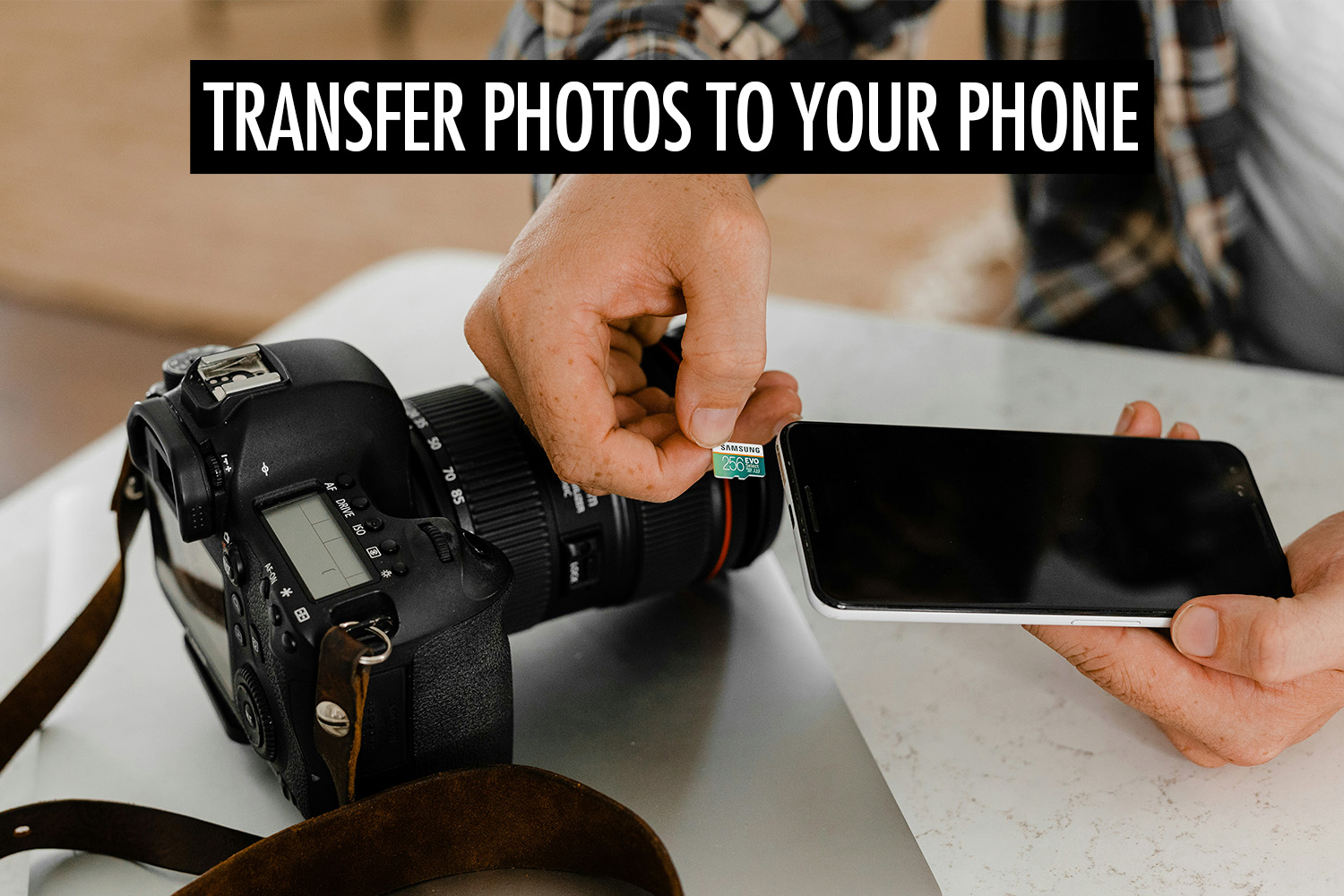
A memory card reader lets you transfer files directly from the camera’s memory card to your phone. It’s a good option for larger batches because wired transfer is generally faster than camera Wi-Fi, and you’re working directly with the original files.
First, remove the memory card from your camera and connect it to a compatible reader.
On an iPhone:
- Open the Photos app.
- Open the import view for the connected card.
- Select the photos you want and import them to your iPhone.
On Android:
- Open Files by Google or another file manager.
- Open the connected USB storage.
- Select the photos you want and copy them to your phone.
Because you’re accessing the files directly from the card, you also avoid the resizing or RAW conversion that some camera apps may apply during wireless transfer.
How do you transfer photos directly with a USB cable?
Direct USB lets you connect the camera straight to your phone and import photos without removing the memory card. Like a card reader, it uses a wired connection, making it a good option for larger batches and original files.
First, connect the camera to your phone with a USB cable.
On an iPhone:
- Turn the camera on and open the Photos app.
- Open the import view for the connected camera.
- Select the photos you want and import them to your iPhone.
On Android, the exact process varies by phone, but the general process is similar:
- Turn the camera on and allow USB access if your phone asks for permission.
- Open Files by Google or another file manager.
- Open the connected camera or USB storage.
- Select the photos you want and copy them to your phone.
The main advantage over a card reader is convenience. You can leave the memory card in the camera and transfer the files directly.
How do you transfer photos automatically while you shoot?
Tethering keeps your camera connected to your phone so new photos transfer automatically as they’re captured. Unlike the other methods, you don’t need to stop and manually select or import files.
This is useful for events, sports, and other shoots where you want photos available on your phone or online while the shoot is still happening.
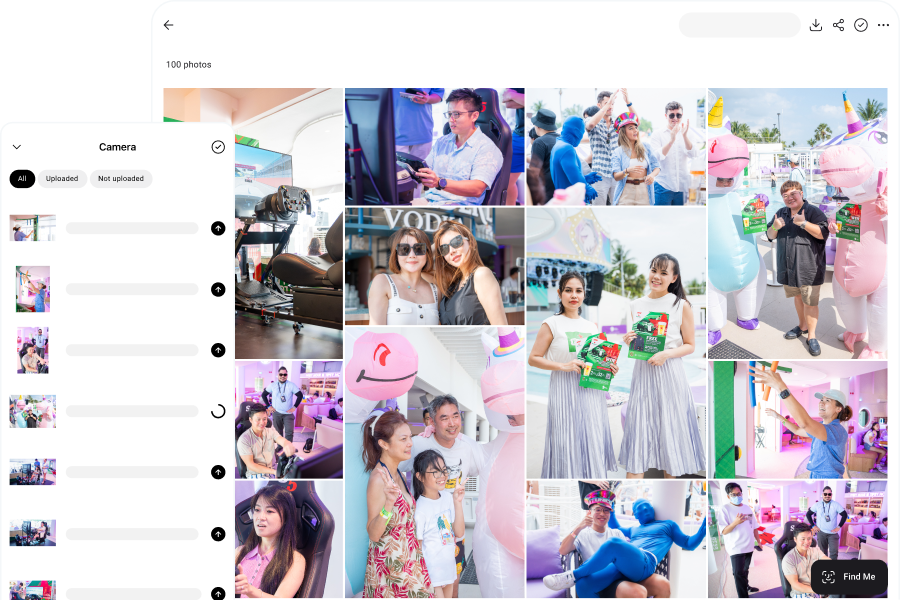
With Honcho, photos are imported into the app as you shoot and uploaded to an online gallery. This lets you share your photos in seconds, while the event is still happening.
For the full setup, see our guide on how to tether your camera to a phone.
Frequently asked questions
Yes. Camera-to-phone Wi-Fi can work as a direct local connection without internet access. Memory card readers and direct USB also work without internet. You only need an internet connection if you want to upload the photos online afterward.
Sometimes. Some cameras can transfer photos over Bluetooth, while others use Bluetooth for pairing and Wi-Fi for the actual image transfer. Bluetooth transfers may also be limited to smaller images, depending on the camera.
Make sure the camera is turned on and set to the correct USB transfer mode, and that you’re using a data-capable cable rather than a charge-only cable. On Android, you may also need to allow USB access when prompted. On iPhone, the camera needs to use a supported image-transfer mode such as PTP or Mass Storage.